Do you keep seeing that “Storage Full” alert on your phone? It is one of the most annoying things that can happen when you try to take a photo. The good news is that there are easy ways to fix it. This guide will show you the best iPhone external storage options for 2026.
Key Takeaways
- Learn how to keep your media files in order.
- Find the top storage drives for 2026.
- See why moving files to a physical drive is a smart idea.
- Know which drives work best with your iPhone.
- Stop missing shots because your phone is full.
How iPhone External Storage Has Changed in 2026
The move to USB-C has made iPhone external storage much easier to use. You no longer need a bag full of adapters. Just plug in your drive and go. This change has made it simple for anyone to add more space to their phone.
Moving files is now very fast. You can transfer a large 4K video in just a few seconds. This is a big deal for people who shoot a lot of video. It makes your iPhone feel more like a pro camera.
You also do not need to carry many cables anymore. One USB-C cable works with most drives on the market. This saves time and cuts down on clutter. It is a much cleaner way to work on the go.
The best part is that you are in full control of your data. You do not have to pay for a cloud plan each month. Your files stay on a drive that you own. That is a great feeling.
What to Look for Before You Buy
Not every drive works well with an iPhone. You need to check a few key things before you spend your money. This will save you a lot of stress later on. Here is what to look for.
Check compatibility first. Make sure the drive says it works with iOS. It should have a USB-C port to match your phone. Drives that list “plug-and-play” support are the easiest to use.
Think about speed. Faster drives let you work with big files right on the drive. Look for read and write speeds that are high enough for your needs. If you shoot 4K video, speed is very important.
Look at build quality. A tough drive is worth the extra cost if you travel. Some drives are water-resistant and can handle a drop. This kind of protection gives you peace of mind.
Check the file format. Your drive should be in exFAT or APFS format to work with iOS. Other formats like NTFS will not let you write files. Most drives can be reformatted for free on a Mac or PC.
SanDisk iXpand Flash Drive Luxe
The SanDisk iXpand Flash Drive Luxe is a tiny drive that does a lot. It has two plugs built right in, so it works with many devices. You can clip it to your keys so it is always with you. It is one of the best iPhone storage picks for casual users.
Pros:
- Very small and light
- Works with the iXpand app to back up photos fast
- No cables or adapters needed
Cons:
- Slower than an SSD
- Not ideal for large video files
The iXpand app makes backup easy. It can save your photos the moment you plug in the drive. You do not have to do anything by hand. This is perfect if you want a “set it and forget it” backup tool.
This drive is best for students, travelers, and everyday users. If you just need to move photos and docs, it works great. But if you edit 4K video, you will want a faster drive. Think of it as a quick and handy backup tool.
Samsung T7 Shield Portable SSD
The Samsung T7 Shield is a top pick for people who need speed and tough build quality. It has a rubber coat that protects it from drops and water. It also has an IP65 rating, which means it can handle dust and splashes. This is one of the best SSDs for iPhone 15 and 16 users.
Pros:
- Very fast read and write speeds
- Rugged design with IP65 rating
- Small enough to fit in any bag
Cons:
- The cable is a bit short
- Costs more than a flash drive
It comes with hardware encryption to keep your files safe. You can also use it right from the iOS Files app with no extra setup. This makes it a very clean and simple tool. It just works the way you want it to.
I recommend this drive for photographers and video creators. If you shoot a lot of ProRes or 4K footage, this drive can keep up. It is reliable and fast enough for daily pro use. The tough build means it can go wherever you go.
Crucial X9 Pro Portable SSD
The Crucial X9 Pro is tiny but very powerful. It is small enough to fit in a coin pocket. Despite its size, it moves large files at very high speed. It is a great pick for anyone who needs a fast and light drive.
Pros:
- Blazing fast speeds
- Very compact and light
- IP55 rating for water and dust resistance
Cons:
- The cable is short
- Higher price than basic drives
It uses 256-bit AES encryption to lock down your data. This means no one can read your files without the right password. It also works well with all modern iPhones. You get both speed and security in one small package.
This drive is ideal for mobile pros who hate carrying heavy gear. If you need to offload footage fast on a busy shoot, this drive handles it with ease. It is one of the best SSDs for iPhone 15 and 16 users who value portability. The price is worth it for the speed you get.
Kingston DataTraveler Bolt Duo
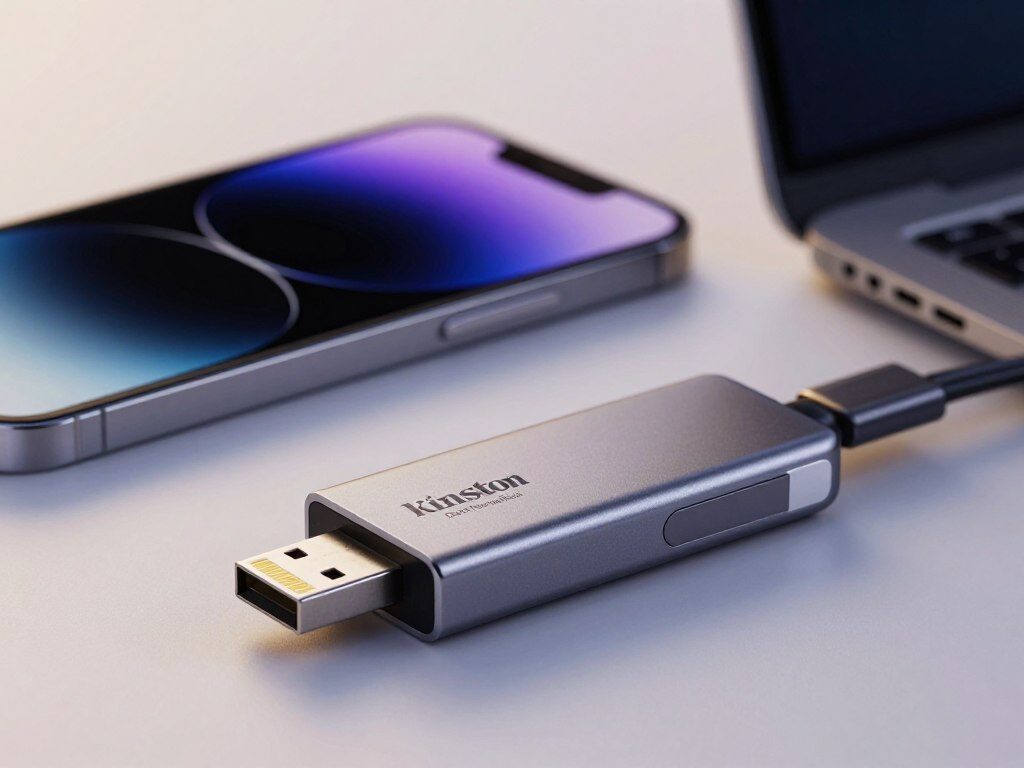
The Kingston DataTraveler Bolt Duo is built for easy, on-the-go use. It plugs right into your iPhone on one end and a laptop on the other. This dual-plug design cuts out the need for cables. It is a great choice for simple, fast file moves.
Pros:
- Tiny and easy to carry
- Works with both iPhone and laptop at once
- No cable or power source needed
Cons:
- Much slower than an SSD
- Not great for editing large video files
It comes with a simple app to help you manage your files. The app makes it easy to back up photos without any tech skills. The rubber casing also adds some protection from daily wear. It is a solid little drive for light use.
| Feature | Flash Drive | Portable SSD |
| Portability | Excellent | Good |
| Transfer Speed | Moderate | Very Fast |
| Best Use | Photos & Docs | Video Editing |
| Price | Budget | Premium |
This drive is best for users who just want a quick backup before a trip. It is not the right tool for heavy video work. But as a grab-and-go backup option, it is hard to beat. Think of it as your safety net for your most precious photos.
Choosing the Right Drive for You
The best drive for you depends on how you use your phone each day. A casual user has very different needs than a pro video creator. Knowing your needs makes the choice much easier. Here is a simple way to think about it.
| User Type | Main Need | Best Drive Type |
| Casual User | Easy use | Flash Drive |
| Content Creator | Fast speed | Portable SSD |
| Business Traveler | Security | Encrypted Rugged SSD |
If you mostly take family photos, a flash drive is all you need. It is cheap, small, and simple to use. You do not need to spend a lot to get the job done. A basic drive will serve you well for years.
If you shoot 4K video or large RAW photo files, go for an SSD. The speed difference is huge. You will save a lot of time on every single transfer. It is money well spent if you create content daily.
USB-C Speeds Explained
Not all USB-C cables are the same speed. The cable you use can slow down your transfers a lot. Always use the cable that came with your drive. A cheap charging cable will not give you full speed.
| USB Type | Max Speed | Best For |
| USB 2.0 | 480 Mbps | Basic docs |
| USB 3.2 Gen 1 | 5 Gbps | Photo backup |
| USB 3.2 Gen 2 | 10 Gbps | 4K video |
| USB4 | 40 Gbps | Pro work |
The rule is simple: match your cable to your drive’s speed rating. If your drive supports USB 3.2 Gen 2, use a cable that does too. Using a slow cable wastes the drive’s potential. Always check the specs before you buy.
How to Move Files Using the Files App
The iOS Files app is the easiest way to manage your iPhone external storage. You do not need to download any extra apps. Just plug in your drive and open the app. It shows up right there in the sidebar.
To move a file, press and hold it to get the menu. Then tap “Move” or “Copy” and pick your drive as the place to save it. It works just like moving files on a computer. The whole process takes only a few seconds.
A good habit is to create a “Backup” folder on your drive. Keep all your old photos and videos in there. This keeps things neat and easy to find later. Doing this once a week takes just a few minutes.
| Task | How To Do It | Why It Helps |
| Move a file | Long-press, then “Move” | Frees up phone space |
| Make a folder | Tap the folder icon | Stays organized |
| Backup photos | Copy to your drive | Protects memories |
| Delete old files | Move to trash | Clears clutter |
How to Keep Your Data Safe
Security matters just as much as speed. If you lose your drive, you want your files to stay private. Look for drives that have built-in hardware encryption. This locks your files so no one else can open them.
AES 256-bit encryption is the gold standard. Both the Samsung T7 Shield and the Crucial X9 Pro offer this feature. It works in the background, so you do not notice it. Your files stay safe without any extra steps from you.
Some people worry that encryption slows things down. In most cases, the speed loss is very small. The protection you gain is well worth any minor trade-off. Do not skip security just to save a few seconds on transfers.
Common Mistakes to Avoid
The most common mistake is using the wrong file format. If your drive is in NTFS format, your iPhone can read it but not write to it. Always reformat to exFAT before you start. This one step prevents a lot of frustration.
Another mistake is using a low-quality cable. A slow cable turns a fast SSD into a slow drive. Always use a certified, high-speed USB-C cable. The right cable can double or triple your transfer speed.
Some drives need more power than your phone can give. This can cause the drive to suddenly disconnect. Use drives made for mobile use to avoid this problem. If you must use a high-power drive, a powered USB hub will fix the issue.
| Problem | Cause | Fix |
| Drive not found | Wrong format | Reformat to exFAT |
| Sudden disconnect | Not enough power | Use a powered hub |
| Access denied | Encryption issue | Use iOS native tools |
| Slow transfers | Bad cable | Use a high-speed cable |
Final Thoughts
iPhone external storage has come a long way. The switch to USB-C means you can use fast, reliable drives with ease. There is a drive out there for every type of user and every budget. You just need to pick the right one for your needs.
For casual users, a flash drive like the SanDisk iXpand or Kingston Bolt Duo is a great fit. For pros who shoot video, the Samsung T7 Shield or Crucial X9 Pro are the clear winners. Both are fast, safe, and built to last. Either one will change how you work on the go.
Do not wait until your phone is full to act. Set up a backup routine now and stick with it. A few minutes a week will keep your files safe and your phone running fast. Your memories are worth protecting.
FAQ
Which drive is best for iPhone 15 or 16? The Samsung T7 Shield and Crucial X9 Pro are both great picks. They are fast, safe, and built tough. Either one handles 4K ProRes video with ease. Both work right out of the box with the latest iPhones.
Can I use an old flash drive with a new iPhone? Yes, but you may need a USB-C adapter. A smarter option is the SanDisk iXpand Flash Drive Luxe. It has both a Lightning and USB-C plug built in. This makes it easy to use across old and new devices.
How do I move photos to an external drive? Open the Files app after you plug in your drive. Go to your Photos app, pick your images, and tap the share icon. Then choose “Save to Files” and pick your drive. It is quick and easy to do.
Flash drive or SSD — which should I pick? It depends on what you do. For photos and basic docs, a flash drive works fine. For 4K video and fast backups, go with an SSD. The speed difference is very big for large files.
What format should my drive be in? Use exFAT or APFS. These formats let your iPhone both read and write files. NTFS only allows reading, which is a major problem. You can reformat for free on any Mac or PC.
Can I password-protect my drive? Yes. Look for drives with hardware-level AES 256-bit encryption. The Samsung T7 Shield has this built in. It keeps your files locked even if the drive gets lost or stolen.
Why won’t my iPhone find my SSD? The most common cause is a bad cable or a power issue. Use the original cable that came with your drive. Some high-power drives need more power than a phone can give. A powered USB hub can solve that problem fast.
Can I record video straight to an external drive? Yes, on the latest iPhone Pro models you can. Plug in a fast SSD and set your camera to record directly to it. This lets you shoot long 4K ProRes videos without filling up your phone. It is a great trick for mobile filmmakers.
Learn About: What Is an Example of Cloud Computing?